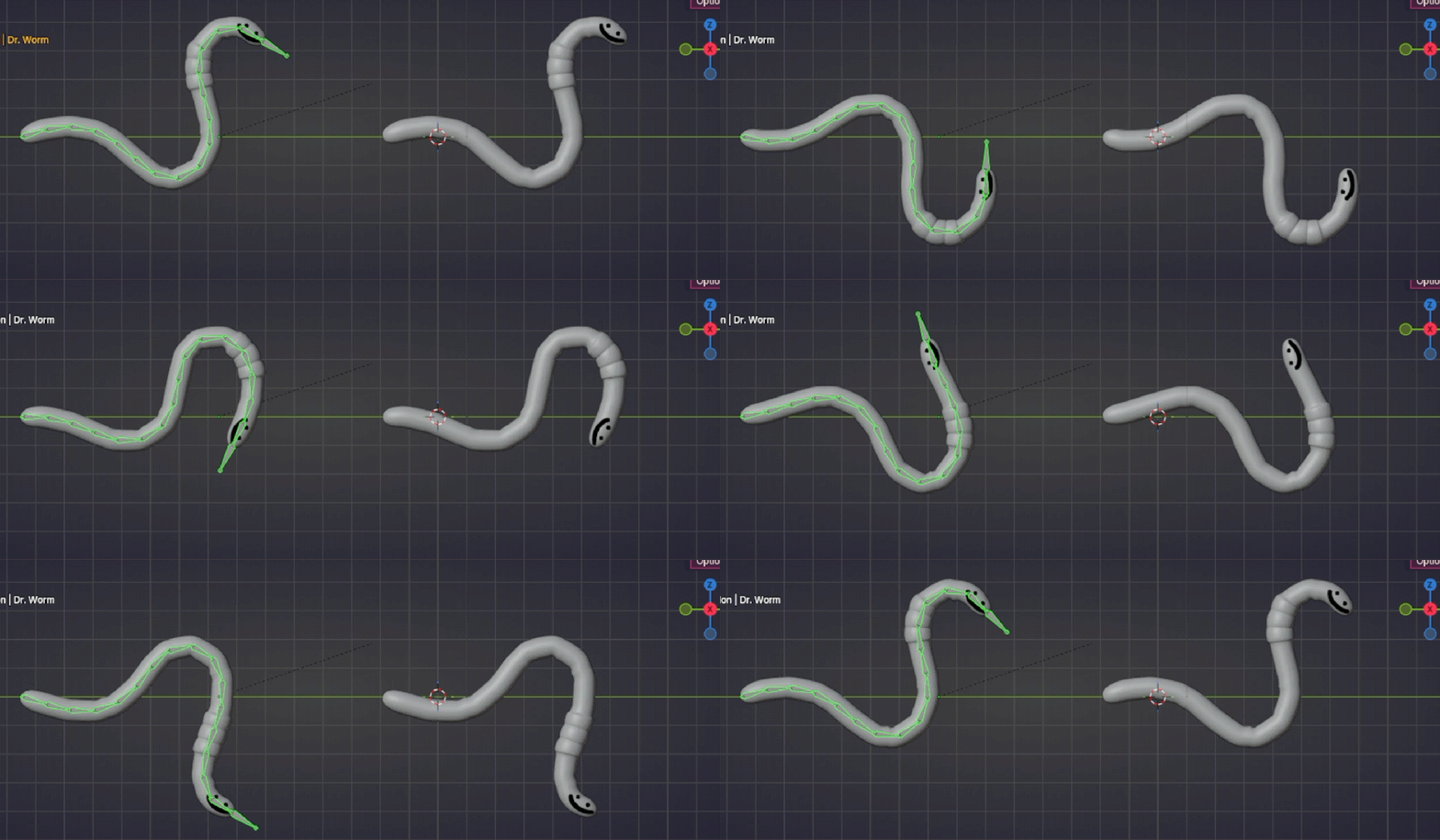
RIGGING
Rigging is really easy to mess up if everything isn't exactly right (like coding!) but thankfully there's lots of ways to cut corners so i'm gonna try to document them all. This page isn't gonna be as much a great rigging tutorial for beginners, than a niche rigging problem troubleshooting collection, sorry abt that. There's tons of great tutorials on YouTube if you don't know where to start, but if you just want to get animating i'd recommend playing around with
these FREE FNAF rigs by vibapop, they're a breeze to work with and also good for observing weight painting, shape keys, and texturing. There's also Miles Morales and Spider Gwen out there with all the controllers but idk where to find them. Happy rigging :)
UM
ok idk what to put here i'm just filling the empty space
4.28.26: You can rig literally anything
*ALMOST anything. Usually when you think of rigs you think of characters but you can and should rig props and special effects and really anything you want to make animating easier in the long term. Ie. dust rig. bones controlling various aspects of dust to create the illusion of 2d animation. I find that the bones also help visualize the easing of each element between keyframes. I saw someone rig a banana once, it was really dynamic and impressive
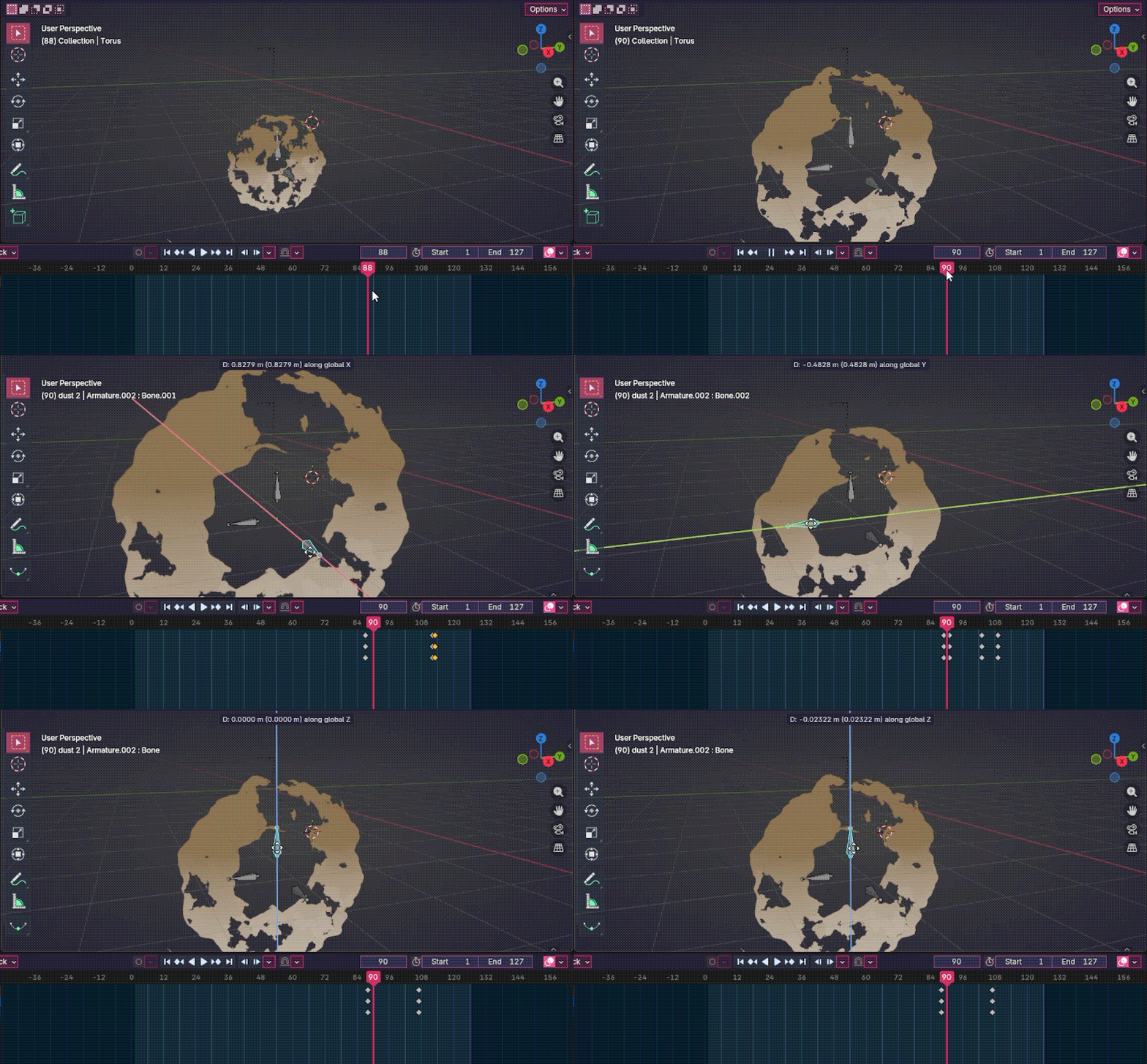
4.22.26: (RANT) UNCONVENTIONAL RIGS!!!!!!
Complaining to myself that I can't properly auto-generate controllers for my rig because there's too many unique functions so I'm adding controllers manually with
bone widget and that's okaY!! The thing with rigify is that it's hard to add controllers for non-standard bones, like a bone setup that rotates the eyeballs, or IK / eye expression switches, especially since rigify doesn't transfer bone constraints and drivers need to be rerouted. I am unfortunately very much drawn to setups like these in my stylized characters since I come from a 2d background and loved spiderverse way too much so this addon may never work for me... BUT I won't give up i'll return when I have a normal ass character with a normal ass rig ok trust
4.19.26: IK rigging is easy actually
An Inverse Kinematics switch makes animating limbs so much easier that I thought it'd be hard to implement but it rly isn't. 1. create 2 controller bones: one in the same position at the hand, one behind the elbow, unparent both. 2. IK bone constraint on the original hand bone, hand bone controller for target, elbow bone controller for pole target, adjust pole angle and chain length and that's literally it. Also you can add a copy rotation constraint for better control. Only problem is that this disables FK so just make an on / off switch with drivers. Or you could just enable AUTO IK, it's pretty good!
4.17.26: Eye blinks and winks w/ drivers + shape keys pt 2: gettin silly with it
Whoo says you have to make a conventional eye blink that eases in 3d space, you can also use shape keys and drivers to make on and off switches for other expressions!!! I have it set up to where my controller cycles through standard blinks and winks, and then cycles between a few toony expressions like 2d dizzy eyes by setting the driver graph interpolation to constant. Wait i'm just realizing, this setup is really similar to how adobe flash puppets work, where a cycle of frames is nested in a segment so it can be used in the frame picker. Wait that's so cool
4.16.26: Eye blinks and winks w/ drivers + shape keys
After like 3 days straight I finally figured out the strat for eyes and turning blinks into winks. If your rig needs winks, before you start adding shape keys, apply your mirror modifiers. You can't apply modifiers once you've created shape keys. If you didn't and you realize later on you want to make winks from your blinks, there's a workaround but it's tedious so skip this section if needed: duplicate your mesh for as many shape keys you have including your basis > delete all other shape keys except one for every mesh, so each mesh represents one unique shape key, then delete the final shape key > apply any modifier as needed > select the basis and shift select the other meshes > F3 (command search), join objects as shapes. Generally, more realistic characters and characters with small eyes only require one shape key for a blink to work nicely, but larger and rounder eyes may need a few, plus assistance from drivers. Now there's 2 ways to go about making a blink and winks, you can start with a wink and mirror the shape keys to create the other wink and the blink, or if your mesh is asymetrical you can start with a blink and turn it into 2 winks (haha twinks). Option 1 is probably easier but I only know the noob way bc I already texture painted and therefore have an asymetrical UV wrap and therefore can't mirror without having to re-unwrap and repaint (hell). Don't texture paint before you finish the rig even though it's tempting. Once you set up your shape keys with your drivers and stuff you can duplicate everything twice and use the blend from shape command on one eye for each set per winks, and redirect your drivers to be controlled by the correct wink shape key instead of the blink.
4.16.26: Drivers are a lot more complex than I thought
So we all know drivers drive things which is great and all, but you can also change the curve of influence which opens up a whooole other universe of possibilities. At first I was like oh k I can use this for stop motion ig that's pretty neat, but you guys. Shape key breakdowns with drivers. My character's eyes are wayy too spherical for me to just use one shape key since shape keys can only move a vertex from one point to another in a straight line, but with drivers you can curve that path of motion by curving the driver's influence graph so your eyelids don't clip through the eyeball!!! I still don't understand how to write custom expressions for drivers bc I haven't written one in 2 years but I'll probably have to get there one day so I'll return to this post once I figure it out.
4.15.26: automatic secondary action pt. 2 (glitches)
While testing your movement in pose mode, you might notice that your damped tracks seem to disconnect from one another when you KNOW they're connected and parented properly. Nothing's wrong, I think it's just a glitch that only happens before you've placed any keyframes. Once you create your first keyframe, your damped tracked bones should be connected to each other in movement as normal. In general when working with damped tracks, it's good to place a keyframe before your animation to reset the position of all of the bones, otherwise the first few frames of your rendered animation might move a little funky.
4.14.26: Im rolling it im rolling it
The finger rolls usually come out doodoo when you first generate your rig, especially if you didnt rig your mesh in standard T pose. First you need to see where the bones' axes are pointing, so go into your object's data panel > viewport display > axes and enable them. Now you can go into pose mode, select the first finger bone, go into the bone panel > rigify type > bend rotation axis: and change automatic to Z manual. Go back into edit mode and use control R to roll the finger bone until the z axis is pointing into the correct direction you want your fingers to curl. You may have to fix ALL of your finger bones if you're still worried. Now when you generate your rig again, the fingers should roll exactly how you want.
4.6.26: I made a mistake.
One fateful day, I finished weight painting my mesh... only to realize it didn't transfer to my rigify-generated-rig! This is because when rigify generates a rig, it adds a "DEF-" prefix to every bone. With this prefix, your vertex groups don't recognize its parents, sad ik, so to fix this you can either add "DEF-" to the beginning of every vertex group manually (noob), or use the
simple renaming addon to add the same "DEF-" prefix to all of your vertex groups at once(hacker).
"Who needs rigify anyway :')"
4.6.26: (RANT?? GLITCH??) Why isn't the "mirror vertex group" function only affecting the vertex group i'm selecting??
MAYBE it's just the rig i'm using, and this shouldn't even be a problem because you set up the mirror weight paint correctly RIGHT??? But when I duplicate a vertex group and try to mirror it, it also mirrors the vertex group I duplicated it from too which... who told you you could do that hello?? Easy solution, remember to do "mirror vertex group (topology)" and THEN "mirror vertex group" and the original vertex group should be unaffected. I'm gonna be so honest I have no idea what this does or why it works bc I accidentally discovered it but yeah
4.6.26: automatic secondary action (tails n stuff)
Animating secondary action in 2d is really fun, but in 3d you have a whole other axis to pay attention to and honestly it's just easier to let the computer do it with damped track contraints. To set it up, select the bone at the end of the chain, then shift select the second to last bone, and control + shift + c to open the constraints menu and add a damped track contraint. Lower the influence to something like .4 and keep doing that down the chain until you reach the first bone in the chain. Satisfying!!